Browser Picker
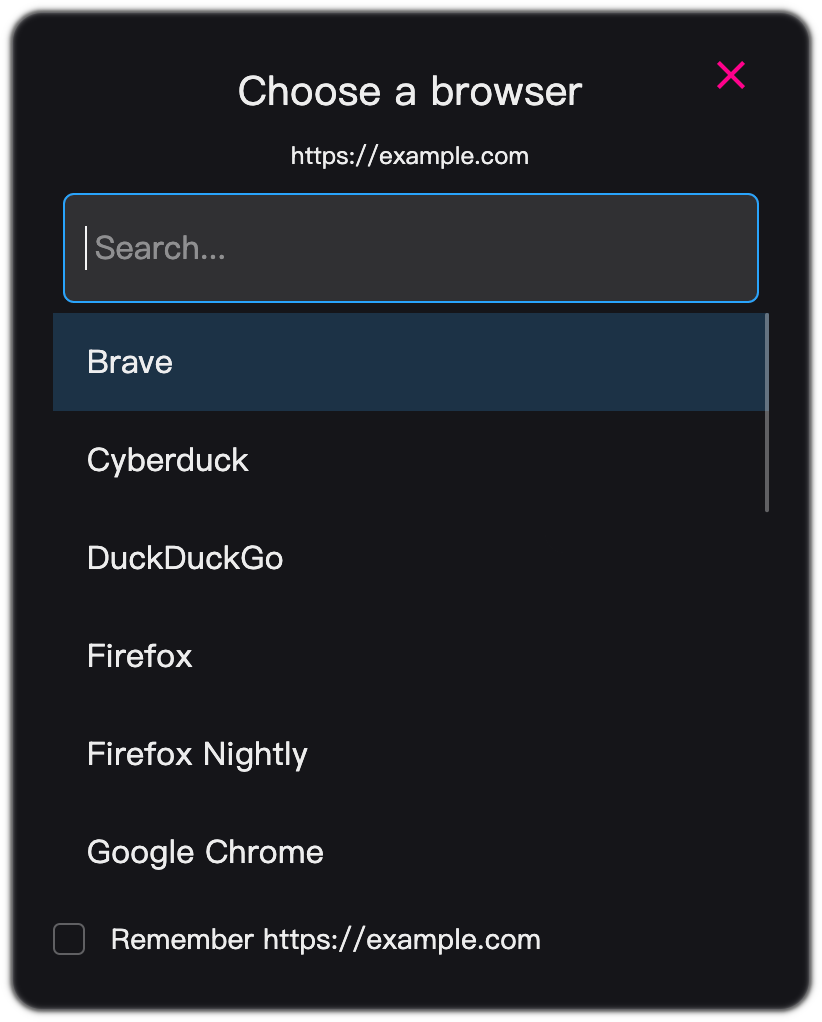
The browser picker asks which browser to open a link in. It appears when a URL matches an Ask rule, or when you hold the Ask hotkey as you click a link.
Choose a Browser
Type to search. Move the selection with the arrow keys and press Enter, or click a browser.
Apps you have hidden are not listed.
Choose a Profile
If the browser has more than one profile, a profile picker appears. The browser’s default profile is listed first.
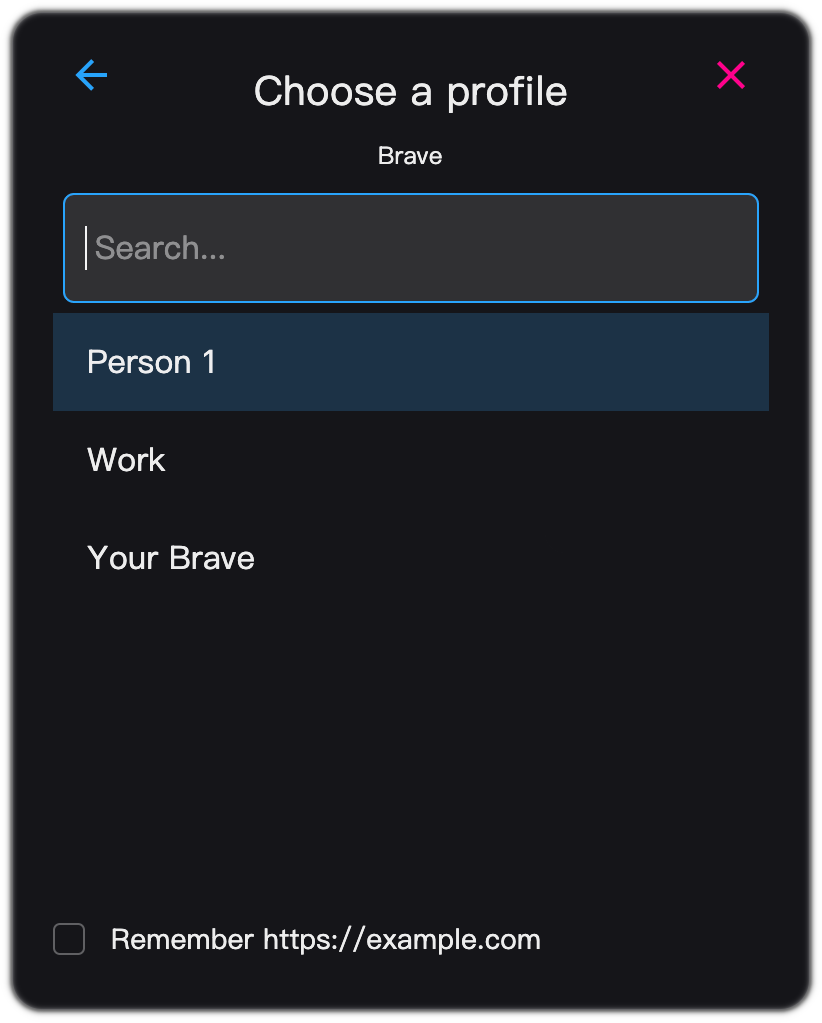
To return to the browser list, click the back button.
Remember for This URL
Check Remember for this URL to add a rule for the browser and profile you choose. The rule matches the scheme and host of the URL, so a choice made for https://example.com/page also applies to https://example.com/other.
The new rule goes at the top of the rule list.
Copy URL
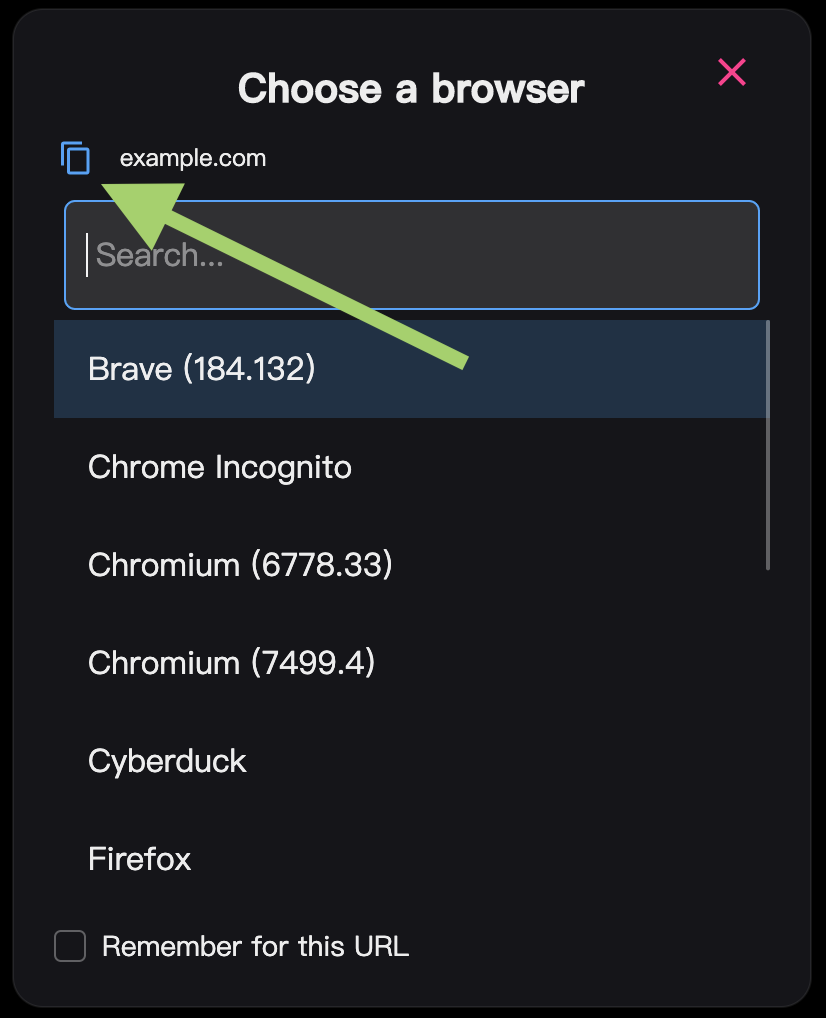
To copy the URL to the clipboard, click the copy button next to the URL.
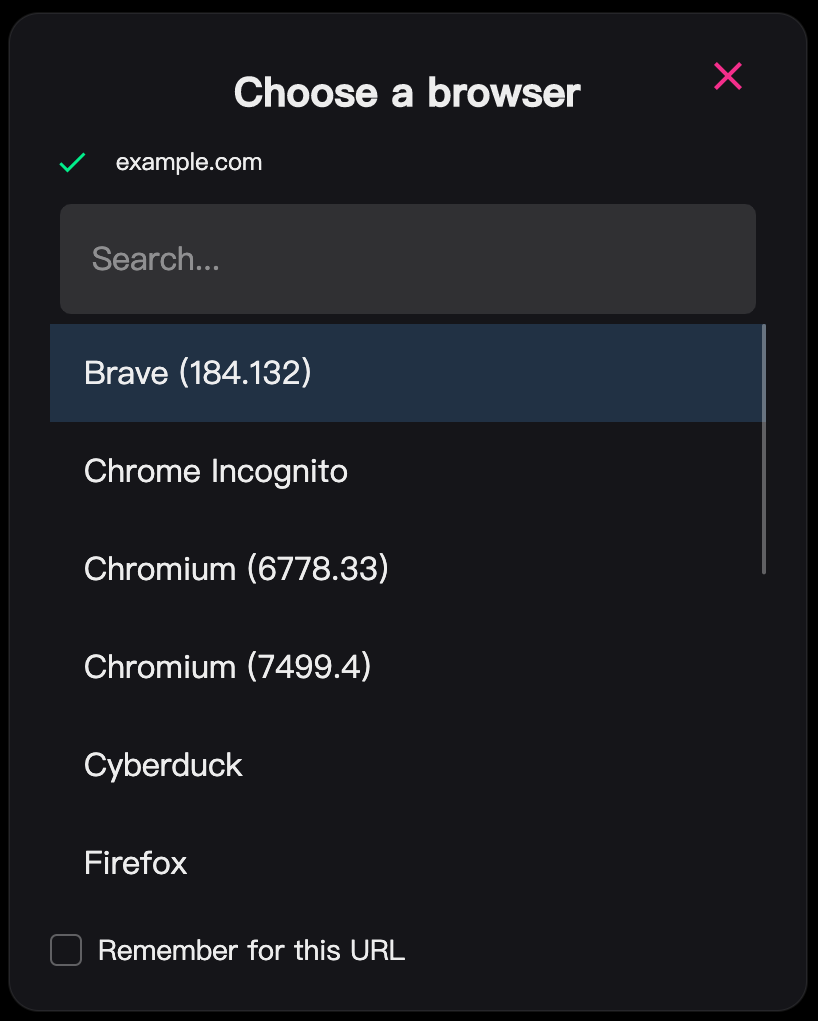
The icon changes to a green check to confirm.
To copy without the mouse, press Ctrl+C on Windows and Linux, or Cmd+C on macOS.
Close
To close the picker without opening a browser, press Esc, click the close button, or click outside the picker.