Filters
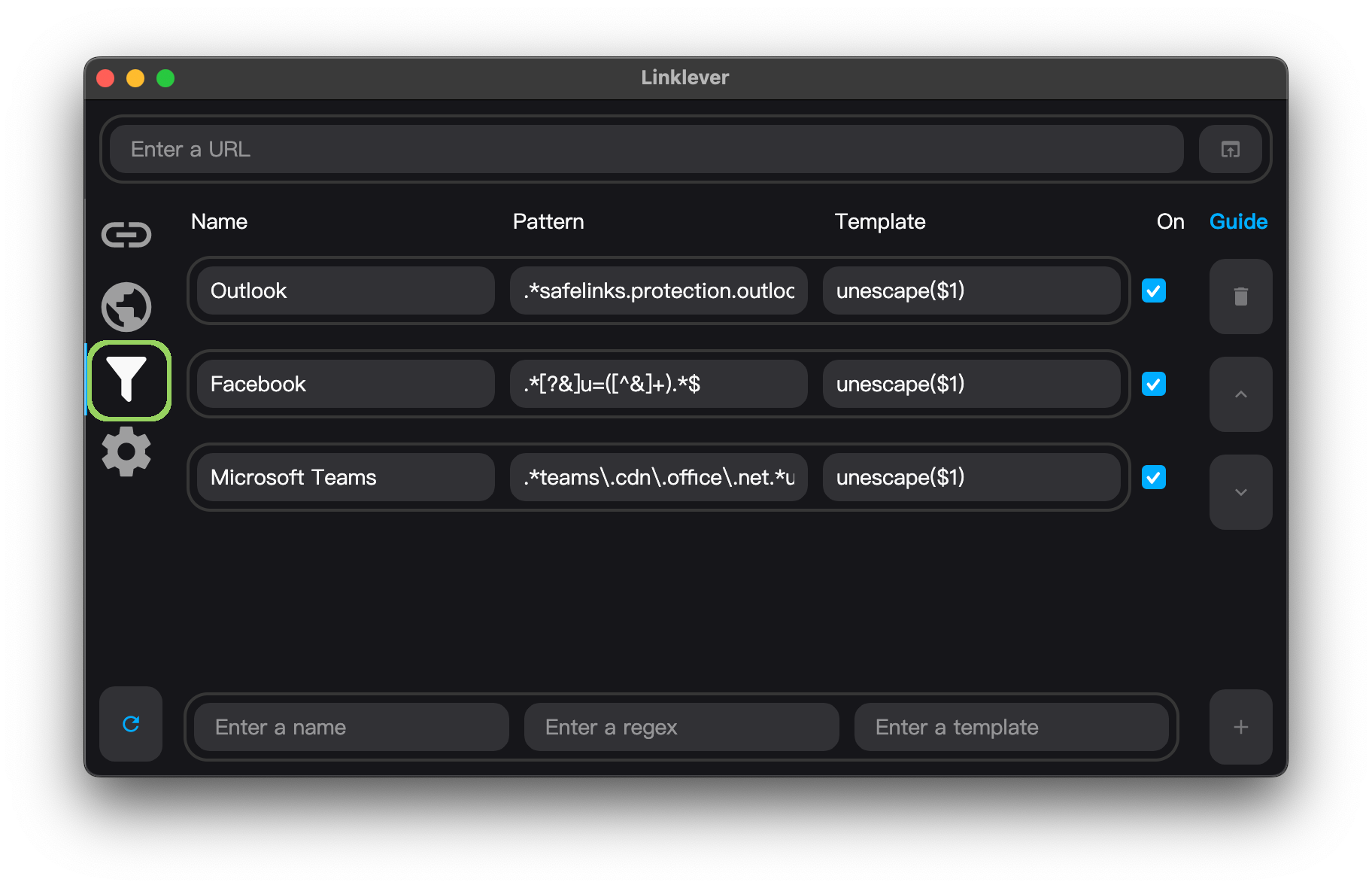
The Filters tab specifies transforms to URLs before sending them on the rules engine. The rules engine then matches on the transformed URL and launches a browser.

When opening a link, Linklever starts at the top of the filter list. It moves down and selects the first matching filter. If there are multiple matches, it selects the first match. If there is no match, then the raw URL is passed along to the rules engine.
For example, if a filter exists with pattern .*teams\.cdn\.office\.net.*url=([^&]+).* and template unescape($1), then Linklever won’t launch the URL statics.teams.cdn.office.net/evergreen-assets/safelinks/1/atp-safelinks.html?url=https%3A%2F%2Fexample.com. Instead it will launch https://example.com.
Anatomy of a Filter
Each filter consists of a name, a pattern, and a template.
Name
The name can be any text. It will appear in notifications, so it’s best to keep it short.

Pattern
The filter only applies if the pattern matches the URL. For help creating patterns, follow our Pattern Guide.

Template
A template selects and transforms text from the raw URL.
In the above example, the template unescape($1) extracts the text https%3A%2F%2Fexample.com and URL unescapes it to https://example.com. Here, $1 refers to the first capture group, i.e. everything matched in the first parenthesis ( ... ), which is in this case everything after url=. The macro unescape converts URL-escaped strings like https%3A%2F%2Fexample.com to normal URLs like https://example.com.

Captures
Parentheses in a pattern mark a capture group. The template can reference captured text with $1 for the first group, $2 for the second, and so on.
For example, the pattern (.*)[&?]utm_source=[^&]+.* and template $1 strip the utm_source tracking parameter. The parentheses around (.*) capture everything before the tracking parameter into $1. So https://example.com?product=123&utm_source=google becomes https://example.com?product=123.
Captures work in glob patterns too. A glob (*) captures whatever the wildcard matches. For example, the pattern https://(*notion.so*) with template notion://$1 rewrites Notion web links to open in the Notion desktop app. The (*) captures the part of the URL after https://, and the template puts it after notion://.
Common examples
| Name | Pattern | Template | Effect |
|---|---|---|---|
| Open in Notion | https://(*notion.so*) | notion://$1 | https://www.notion.so/page/123 opens in Notion instead of a browser |
| Open in Steam | https://store.steampowered.com/app/(*) | steam://store/$1 | https://store.steampowered.com/app/440 opens in Steam |
| Strip SafeLinks | .*teams\.cdn\.office\.net.*url=([^&]+).* | unescape($1) | Unwraps Microsoft SafeLinks to the original URL |
Filter operations
Add
To add a filter, fill in the fields at the bottom of the app, and click the add button.

Delete
To delete a filter, select it, and click the delete button.

Promote
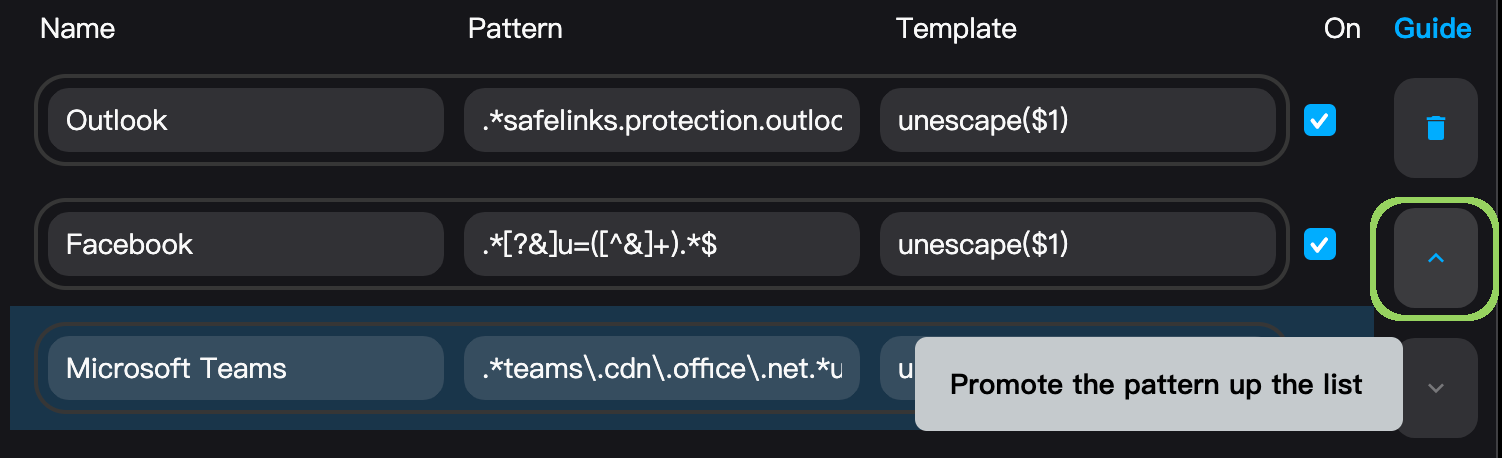
To promote a filter (move it up the list), select it, and click the promote button.
It is not possible to promote the catch-all filter.
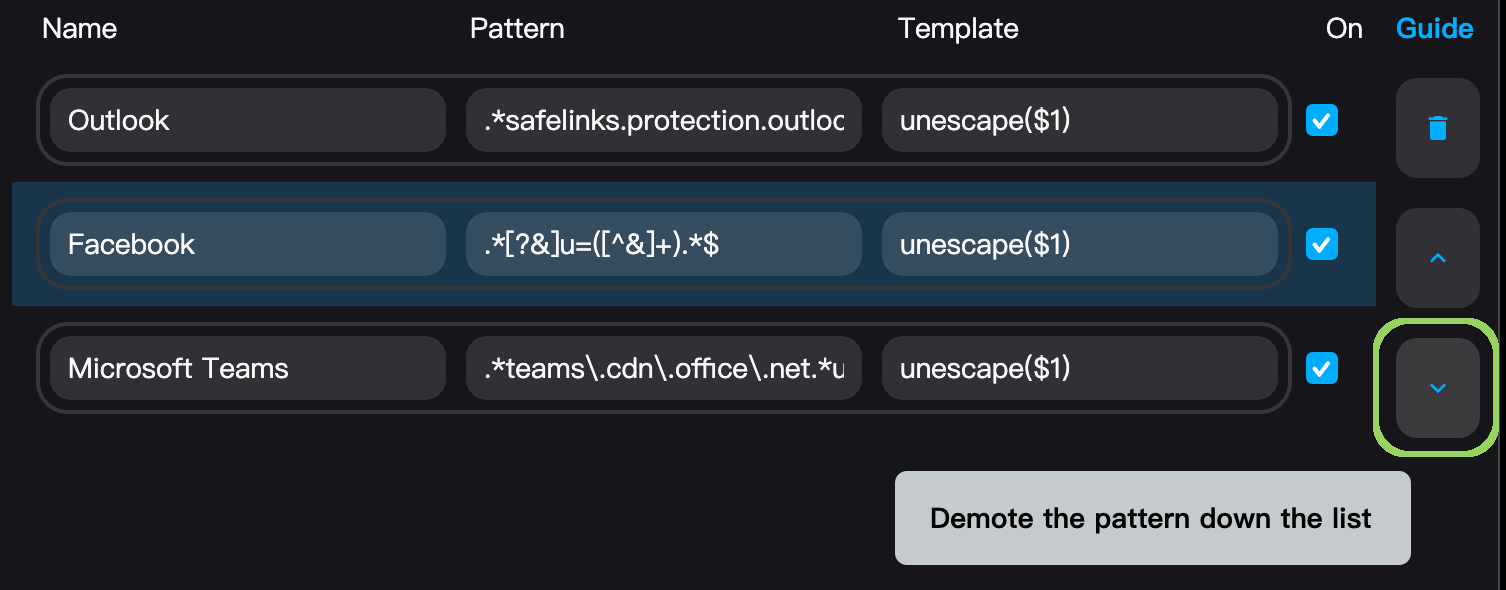
Demote
To demote a filter (move it down the list), select it, and click the demote button.